Contents
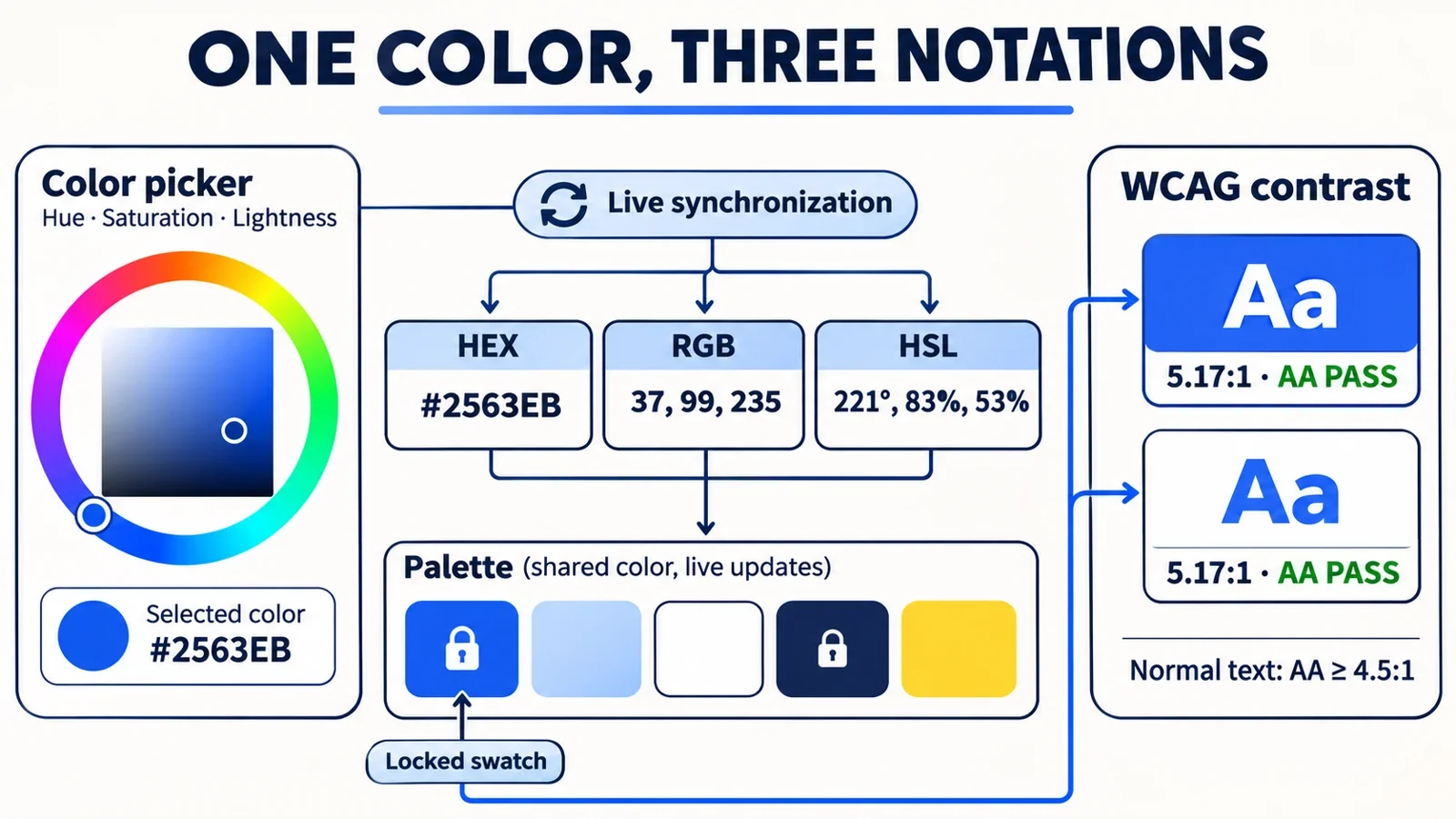
Digital design tools commonly offer HEX, RGB, and HSL as alternative ways to express colors inside the same sRGB color model. Choosing between them is less about which color you can produce and more about which notation supports your testing workflow: reading values at a glance, entering adjustments, tracking live updates across fields, preserving locked swatches during randomization, and verifying contrast compliance. This guide walks through each decision point with a focus on user inputs, outputs, and practical checks you can perform in a color laboratory environment.
Comparing Color Notations: HEX, RGB, and HSL
Structural differences across formats
HEX notation expresses color using a hash prefix followed by either three or six hexadecimal digits, written as #RGB or #RRGGBB. The three-digit form is a shorthand that duplicates each digit to expand into the full six-digit representation. RGB notation uses three numeric channels—red, green, and blue—with each value ranging from 0 to 255. HSL separates color into three perceptual components: hue as an angle from 0 to 360 degrees, saturation as a percentage from 0 to 100%, and lightness as a percentage from 0 to 100%.
Human readability and testing implications
HEX values are compact and easy to copy between stylesheets, but individual channel relationships are not immediately visible to most readers. RGB makes channel intensity explicit, which helps when you need to reason about how much red, green, or blue contributes to the final color. HSL is often more intuitive for adjusting tonal relationships: changing hue rotates the color wheel, while saturation and lightness adjustments control intensity and brightness independently.
Practical testing steps
When comparing formats in a color picker, enter the same color through each notation and confirm that the resulting swatch and preview remain identical. Record whether the tool accepts shorthand HEX such as #fff alongside full #ffffff, whether RGB inputs enforce whole-number constraints from 0 to 255, and whether HSL inputs accept fractional percentages or require whole numbers. These input constraints determine how precisely you can specify test colors and how easily you can reproduce findings across sessions.
Testing Strategy for Live Synchronization
What live synchronization means
Live synchronization occurs when changing a value in one notation automatically updates the equivalent values in the other notations without requiring a manual conversion or page reload. For example, entering a new HEX string should refresh the RGB and HSL fields to represent the same sRGB color, and moving an HSL hue slider should update HEX and RGB outputs accordingly.
Test cases for synchronization
Start by entering a complete HEX value and observe whether RGB and HSL fields update in real time or only after focus leaves the input. Next, modify each RGB channel individually and verify that HEX and HSL reflect the change. Then adjust hue, saturation, and lightness one at a time and confirm that HEX and RGB remain consistent with the HSL state. Finally, use a color swatch or sample selector to choose a preset color and check that all three notation fields synchronize to the selected value.
Adjustment-specific observations
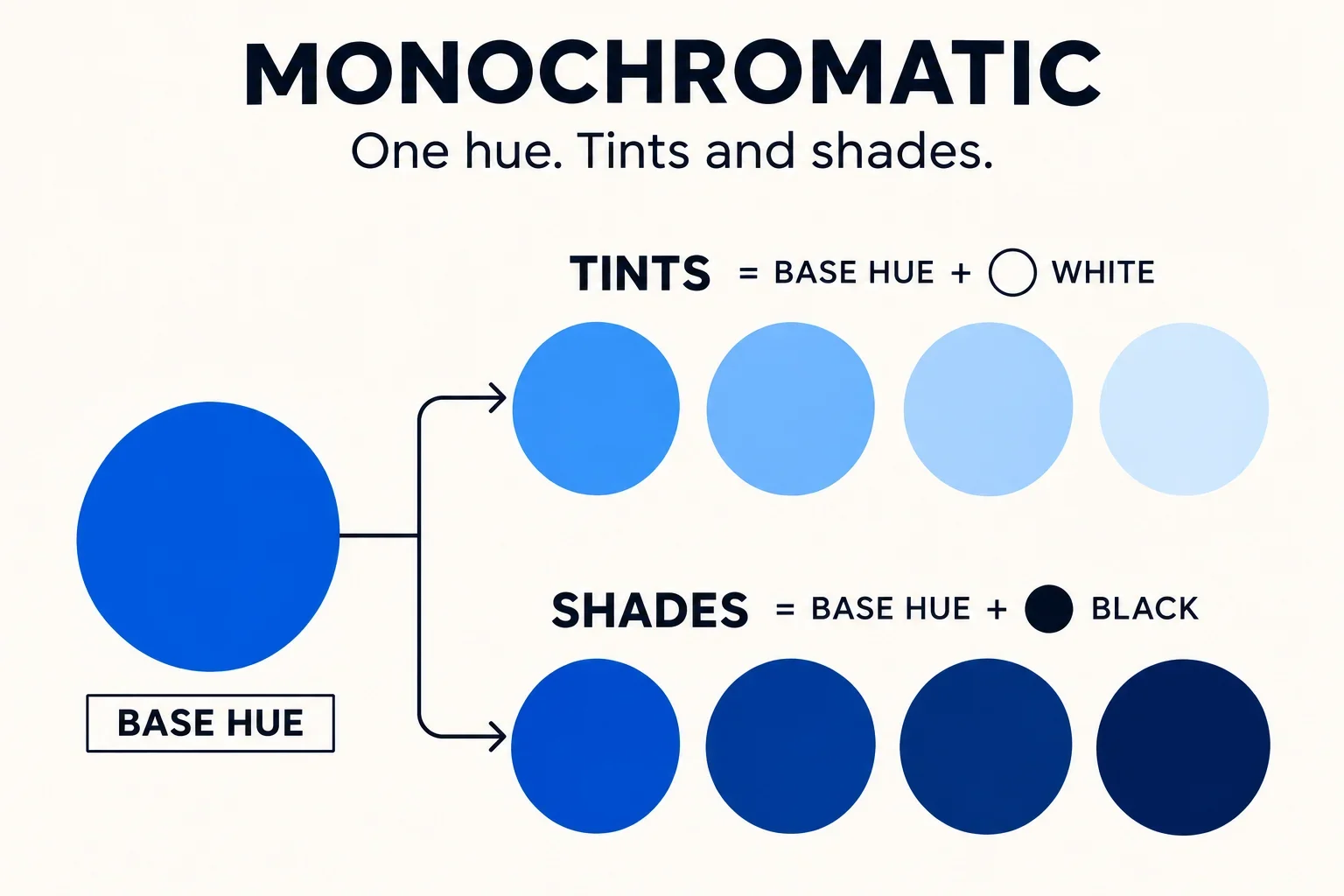
Hue adjustments rotate the color through the spectrum while saturation and lightness remain fixed in HSL terms, though the resulting RGB and HEX values change nonlinearly. Saturation adjustments move the color toward or away from gray without changing hue. Lightness adjustments move the color toward black or white. In a well-synchronized tool, all three notations should track these adjustments continuously, giving you the same final color regardless of which field you edited last.
Synchronization decision steps
- Pick a starting notation and enter or select a color.
- Watch each other field for immediate updates versus delayed updates after blur or submit.
- Change one channel at a time and compare the updated outputs against an independent converter if available.
- Confirm that the final HEX, RGB, and HSL values represent the same visual swatch.
- Repeat with different color families, including near-black, near-white, saturated, and neutral colors.
Reader questions to consider
- Does the tool update while typing, or only after you finish editing a field?
- Are partial or malformed inputs rejected or ignored during synchronization?
- Does switching between input tabs preserve the previously selected color?
- What happens if two fields are edited rapidly in sequence?
Palette Generation and Swatch Locking
Starting color inputs
Palette generation can begin from a specified starting color or from a randomized starting point. When you provide a starting color, the generator uses that swatch as the anchor for harmony calculations. When randomization is enabled, the tool selects an initial color without user input, which is useful for exploratory testing but makes results harder to reproduce unless the seed or starting value is recorded.
Harmony scheme behavior
Color harmonies such as complementary, analogous, triadic, and tetradic schemes derive their additional swatches from the starting color input. The specific angular offsets and relationship rules determine how the secondary colors relate to the anchor, but every scheme begins with the same initial swatch decision.
Locked swatches through scheme changes and randomization
Locking any swatch preserves it through scheme changes and randomization. This means that if you lock one or more colors, switching from an analogous scheme to a triadic scheme—or triggering a new randomization—will not replace the locked swatches. Unlocked swatches may be regenerated or shifted according to the new scheme.
Testing checklist for palette workflows
Test palette generation by first selecting a starting color, generating a scheme, then locking one swatch and changing the scheme. Confirm the locked swatch remains unchanged while other swatches update. Repeat with randomization enabled to verify that locked colors survive random restarts. Also test what happens when all swatches are locked versus when none are locked, so you understand the boundaries of preservation behavior in your tool.
Verifying Contrast against WCAG Thresholds
Contrast ratio thresholds by text size
Normal text requires a 4.5:1 contrast ratio for AA conformance and 7:1 for AAA conformance. Large text requires a 3:1 ratio for AA and 4.5:1 for AAA. Large text is defined as 18 point or 14 point bold.
How format choice affects contrast verification
The contrast ratio itself is calculated from the relative luminance of two colors, not from the notation used to enter them. However, your choice of format can affect how easily you spot problematic combinations during testing. HEX makes it quick to compare two candidate colors side by side in code. RGB helps you see whether one channel dominates, which can signal low contrast between similar brightness levels. HSL makes lightness differences explicit, which is useful because contrast depends heavily on lightness separation between foreground and background.
Practical verification workflow
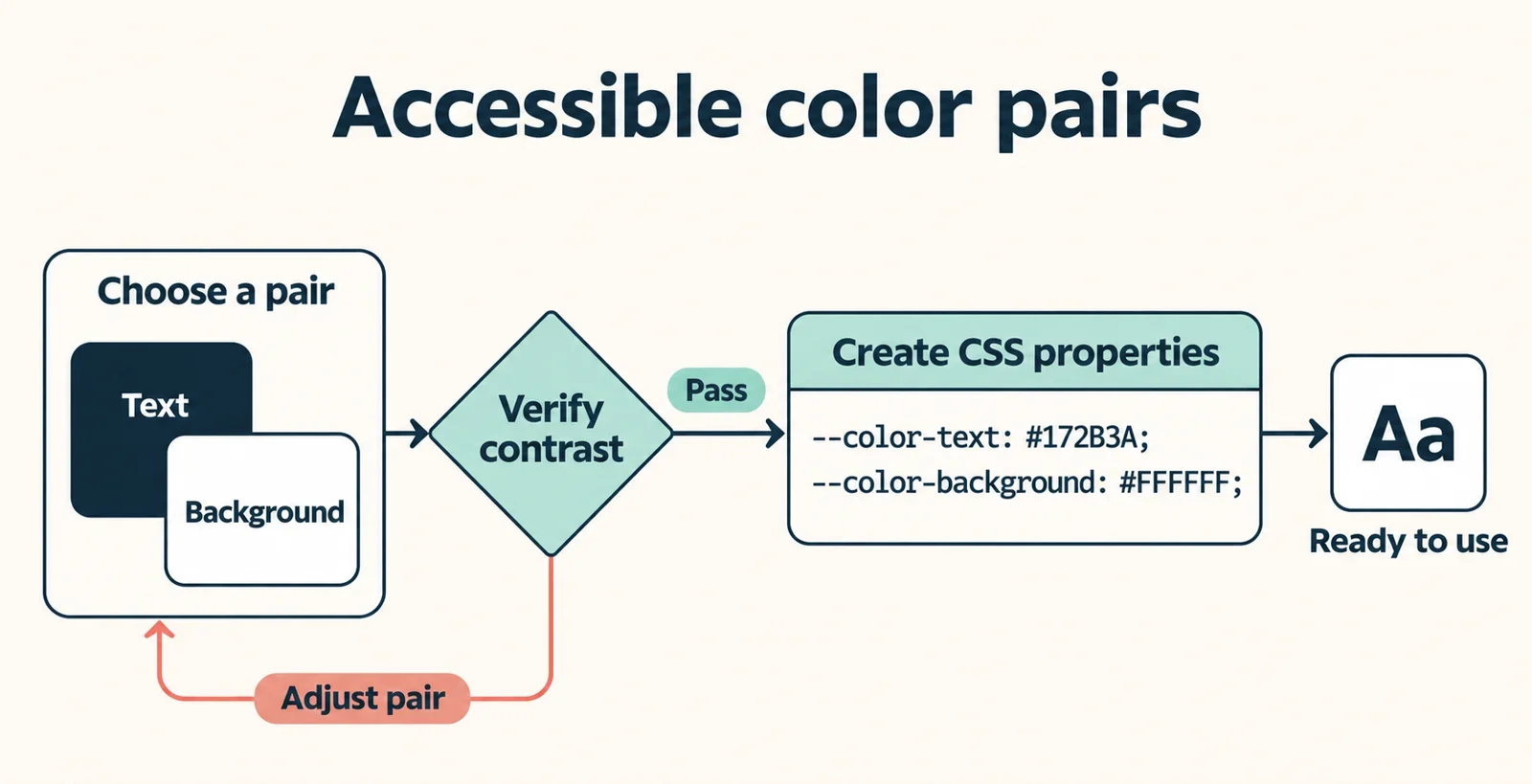
Enter your foreground and background colors using whichever notation you prefer, then run the contrast check against both normal text and large text thresholds. Record whether each pair passes AA and AAA for normal text, and AA and AAA for large text. If a combination fails, adjust lightness in HSL or channel values in RGB, then re-check until the pair meets the target threshold. Because thresholds differ by text size, a color pair that passes for large text may fail for normal text, so document the intended use case alongside the result.
Ask or verify before testing
If you need to confirm which notation fields a specific contrast checker accepts, whether large-text detection applies to a particular font size in your product, or how the tool rounds results near a threshold boundary, check the tool’s input labels and documentation before relying on a pass or fail result.