Contents
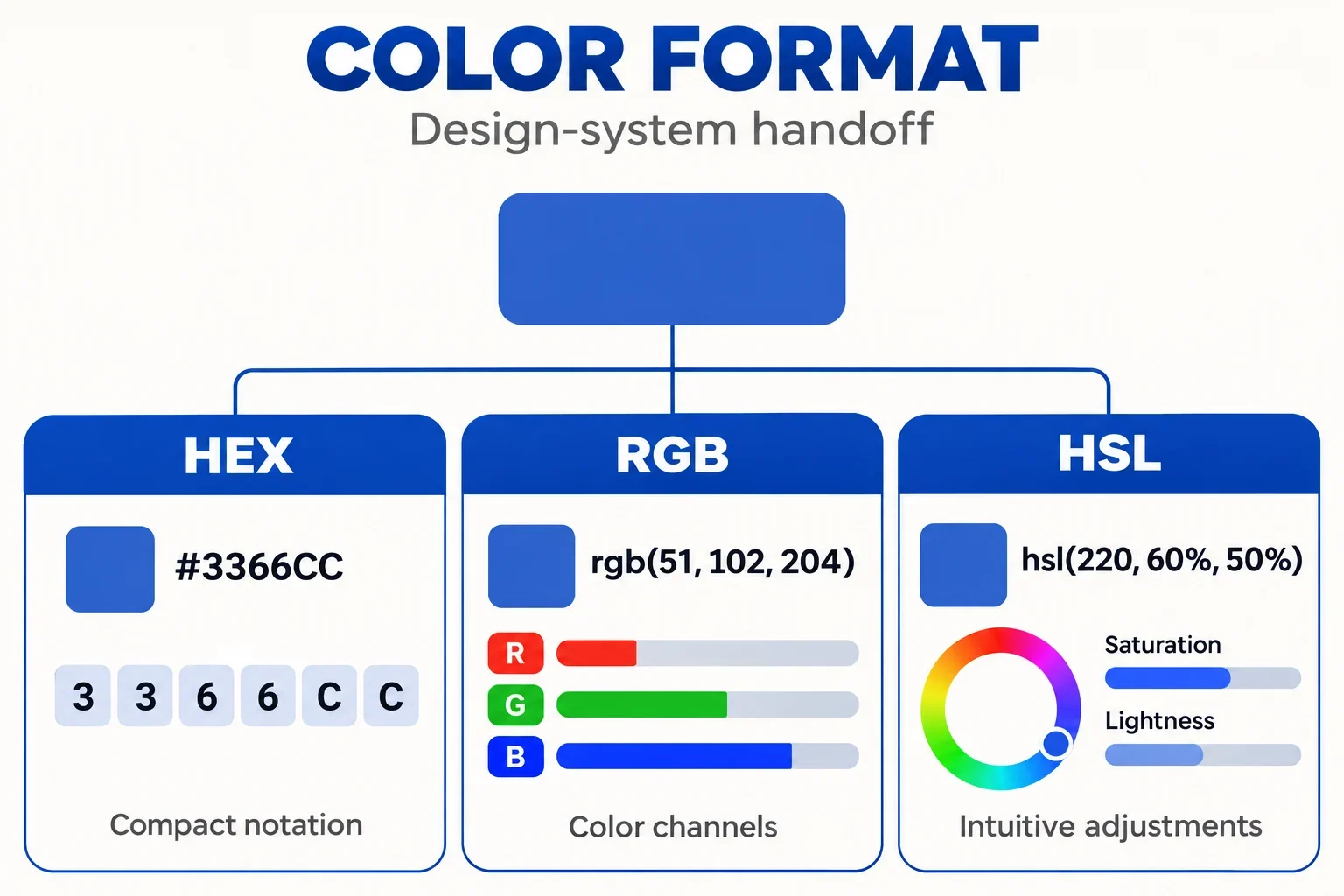
A design-system handoff works best when designers and developers agree on a single source of truth for color values. PaletteBench offers three browser-based tools—a color picker, a palette generator, and a contrast checker—each accepting and returning color information in HEX, RGB, or HSL formats. Choosing the right format depends on whether the priority is compact notation, channel-level control, or intuitive hue, saturation, and lightness adjustments.
This article explains what each format offers, how to use the color picker to compare formats, how to build and lock palettes in the generator, and how to test contrast pairs against WCAG AA and AAA thresholds. It also covers how to copy values for CSS custom properties. Because accessibility thresholds depend on text size and contrast level, the contrast section distinguishes normal text from large text and states what passing looks like.
Color formats and when to use each
HEX, RGB, and HSL all describe colors, but they organize the information differently. HEX uses a hash symbol followed by either shorthand #RGB or full #RRGGBB notation. This compact form is common in CSS and design files, but individual red, green, and blue channels are not immediately obvious from the string.
RGB expresses color through three channel values ranging from 0 to 255. Developers often use RGB when they need to adjust opacity through RGBA or inspect channel values directly. HSL separates color into hue measured from 0 to 360 degrees, with saturation and lightness expressed as percentages from 0 to 100 percent. This structure can make it easier to fine-tune a color while staying in the same hue family.
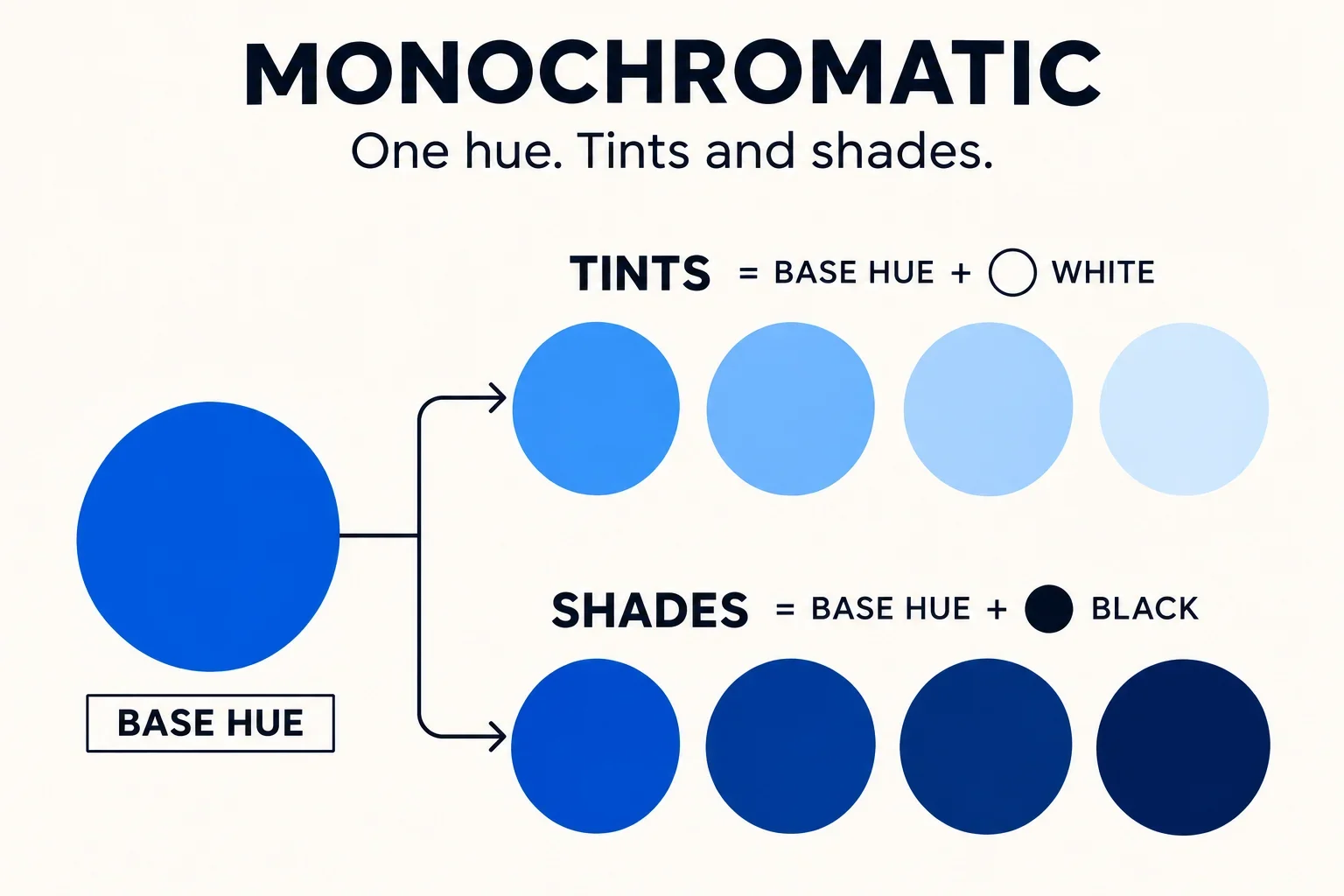
Choose HEX when you want a short, portable token for documentation or design tokens. Choose RGB when you need channel-level transparency or work closely with CSS color functions. Choose HSL when you are creating tints, shades, or harmonious variations by adjusting lightness and saturation while preserving hue. A design system may standardize on one format for tokens and allow others for working files, so confirm the team convention before handing off values.
Using the color picker to compare formats
The PaletteBench color picker lets users select a shade visually or enter a value directly. Once a color is chosen, the tool displays HEX, RGB, and HSL values that stay in sync. Changing any one format updates the other two, so users can compare how the same color is represented across notations without converting manually.
Because all three outputs appear together, the picker is useful for verifying that a designer’s HEX token matches the developer’s RGB implementation. It also helps teams decide which format to standardize on: if the visual adjustment feels more natural in HSL but the codebase uses HEX, the picker shows the equivalent HEX value to record in the design system.
When using the picker, enter values in the format accepted by the active input field. If you paste a value and the outputs do not update, check that the notation matches the field’s expected pattern, such as a valid HEX string or numeric RGB channels. Then copy the format your handoff documentation requires.
Building and locking palettes with the palette generator
The palette generator starts from a selected color. Users can send a color from the color picker into the generator or randomize the starting point. From there, the generator applies harmony schemes including Complementary, Analogous, Triadic, and Tetradic, producing four colors in one direction.
Locking individual swatches preserves those colors through scheme changes and randomization. If a brand color must remain fixed while the rest of the palette explores new harmonies, lock that swatch before changing schemes or randomizing. Locked swatches can be unlocked later when they are no longer needed as constraints.
This behavior matters for handoff because it separates stable system colors from experimental variations. A designer can lock primary and neutral swatches, generate supporting accent colors, then copy the full palette output. Developers can paste HEX, RGB, or HSL values into CSS custom properties, depending on the team’s token format. Before copying, confirm which format the design-system documentation expects so the handoff does not require conversion downstream.
Workflow for generating a palette
- Open the palette generator within PaletteBench.
- Choose the starting color manually, send it from the color picker, or randomize it.
- Select a harmony scheme: Complementary, Analogous, Triadic, or Tetradic.
- Lock any swatch that should stay fixed while other colors change.
- Change schemes or randomize the unlocked colors as needed.
- Unlock swatches only when their constraint is no longer required.
- Review all four generated colors before copying output.
Practical examples
- Brand-locked palette: Lock the primary brand swatch, then switch between Analogous and Triadic schemes to see accent options without moving the brand color.
- Experimental accent generation: Leave all swatches unlocked, randomize the starting point, and cycle through schemes until a usable four-color set appears.
- Handoff preparation: After locking required system colors and generating supporting accents, copy the palette and map each swatch to the CSS custom-property format named in the design-system tokens.
Choosing HEX, RGB, or HSL for copied values
Copy HEX when tokens are stored as compact hexadecimal strings. Copy RGB when the system uses explicit red-green-blue channel values. Copy HSL when the team adjusts hue, saturation, and lightness directly in CSS. Verify the expected token format before pasting values into the design-system repository.
Reader questions
- What happens to unlocked swatches when the harmony scheme changes?
- Can a locked swatch be edited directly, or must it be unlocked first?
- Which palette output format matches the project’s CSS custom-property naming convention?
Testing contrast and recording accessible pairs
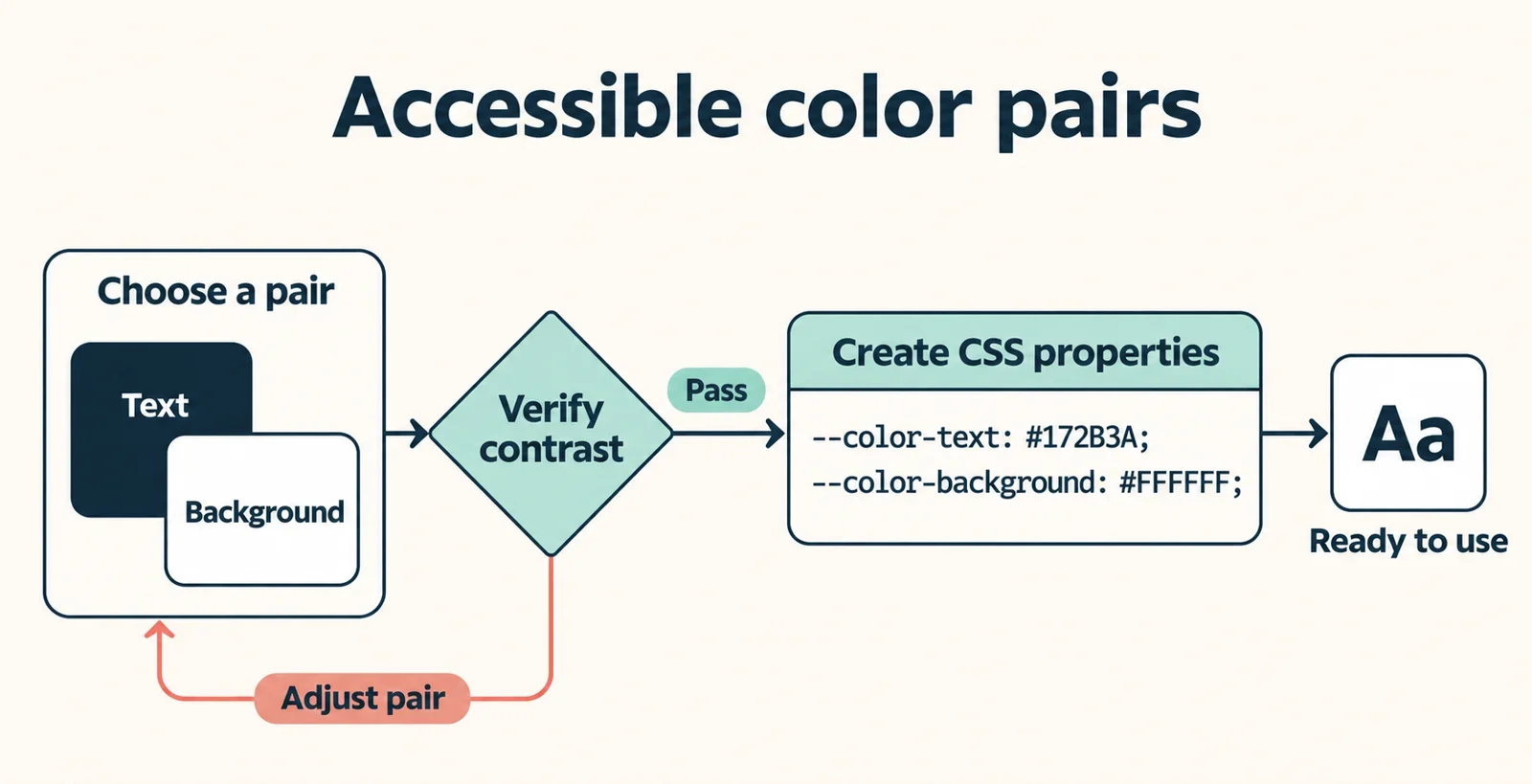
The contrast checker accepts text color and background color as HEX values. Users enter both colors and compare the resulting ratio against WCAG thresholds. Normal text must meet a minimum contrast ratio for AA compliance, and large text has a separate, lower threshold. AAA requires stricter ratios for both normal and large text.
The supplied reference includes one measured example: white text on #4338CA measures 7.90:1 and passes normal-text AA and AAA thresholds. This does not mean every white-on-color combination passes; each pair must be tested individually because contrast depends on both colors.
To document passing pairs, record the text color, background color, measured ratio, text size category, and compliance level achieved. If a pair fails AA for normal text, try increasing lightness difference, choosing a darker background, or selecting a lighter text color, then retest. Keep the HEX values used in the test so developers can reproduce the exact pair in CSS custom properties without guessing or converting formats.
Choosing text sizes for threshold comparison
WCAG distinguishes normal text from large text, and each category has its own pass/fail line. Because the tool reports a measured ratio rather than labeling text size, the person documenting the result must state whether the pair is intended for normal or large text before comparing against a threshold.
Documenting compliant pairs
A useful handoff record includes:
- Text color in HEX
- Background color in HEX
- Measured contrast ratio
- Text size category
- Compliance level achieved (AA or AAA)
- Date tested
Developers can paste the recorded HEX values directly into CSS custom properties, reducing conversion errors during implementation.
Revising failing pairs
If a combination does not meet the target threshold, adjust one color at a time and retest. Increasing the lightness gap often helps: darken the background, lighten the text, or both. After each change, record the new HEX values and ratio before deciding whether the revised pair meets normal-text AA, large-text AA, normal-text AAA, or large-text AAA.